Quick Start
This chapter walks you through first launch, basic settings, and your first video analysis.
1. First launch
The first time you open the app, a quick setup dialog appears. Confirm these items in order:
- Language: Choose "English" or keep "Follow system".
- Software statement: Read it and check "I have read and agree to this statement".
- Share usage statistics and diagnostics: Optional. If disabled, sign-in, quota, and analysis features still work normally.
- Theme: Choose light, dark, or follow system.
- Library path: Choose where exported clips, collections, and downloaded outputs are saved.
tip
The data directory and library path are different. The data directory stores the database, logs, and cache. The library path stores downloaded video materials, exported clips, and collections.
2. Import your first local video
- Open Material Library from the left navigation.
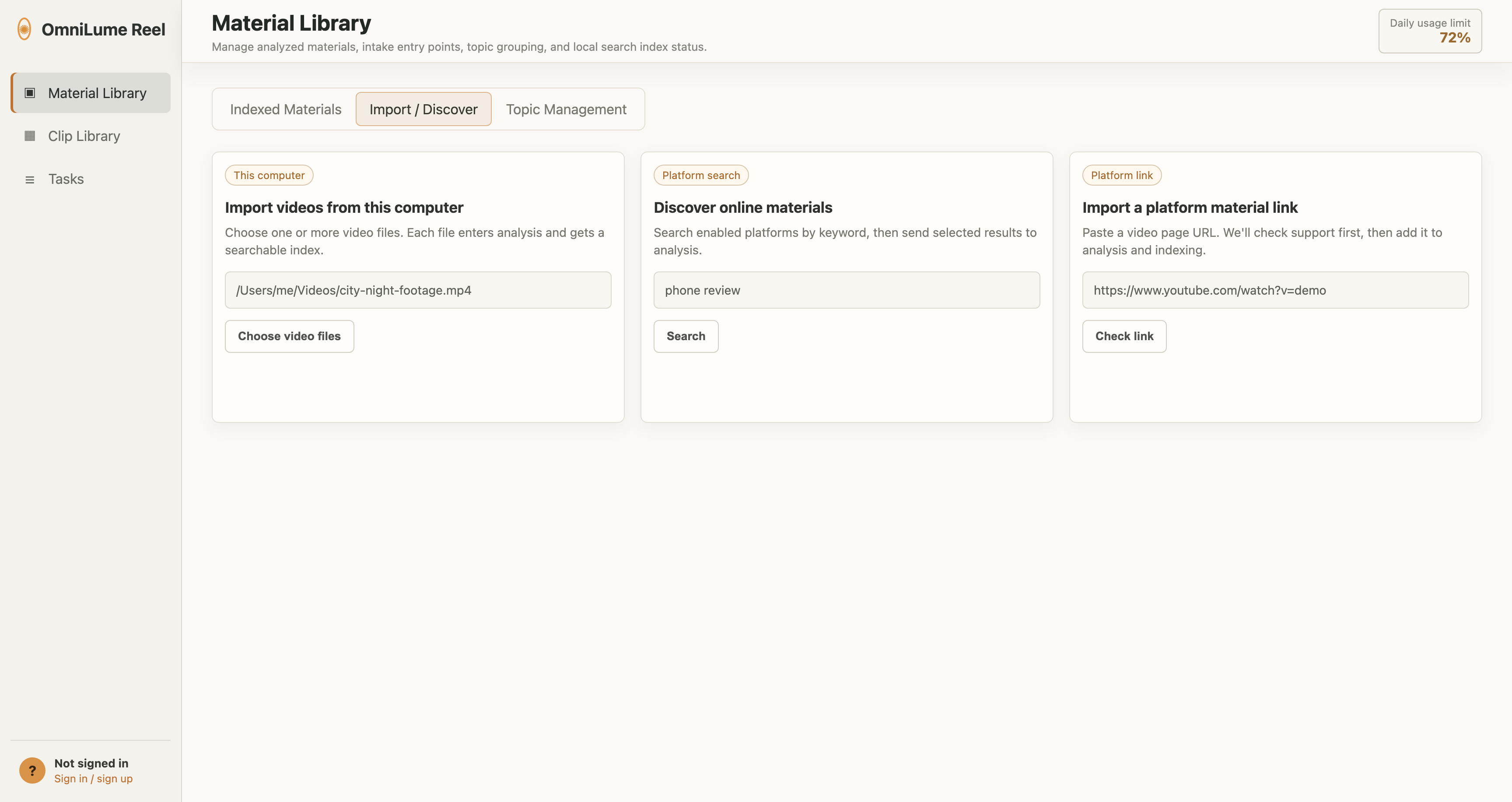
- Switch to Import / Discover.
- In the "Import videos from this computer" card, click Choose video files.
- Select a local video, for example:
/Users/me/Videos/city-night-footage.mp4
The app creates an analysis task for the video. You can open Tasks to watch its progress.
3. Search platform videos
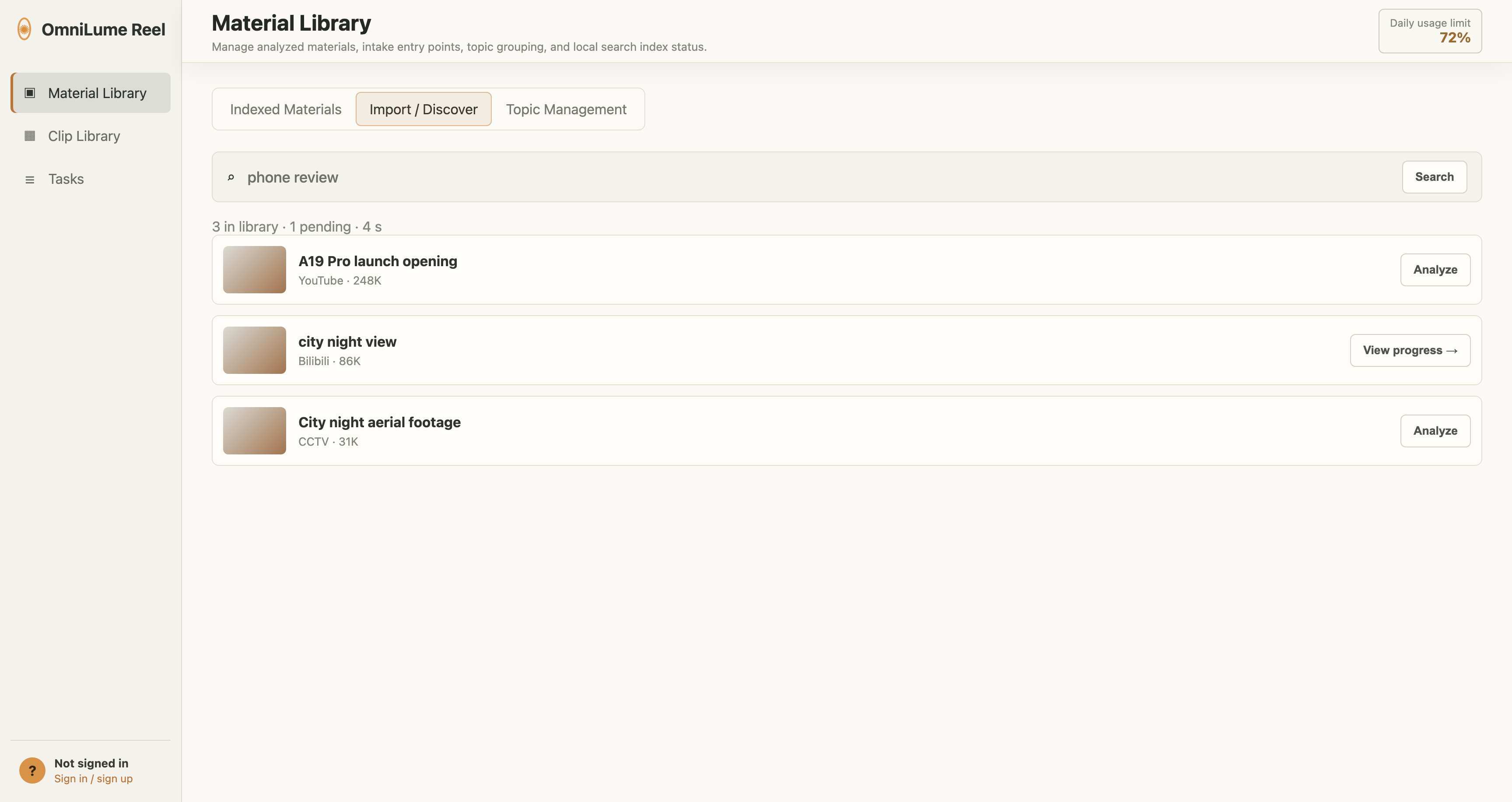
- Open Material Library > Import / Discover.
- Enter a keyword in "Discover online materials", for example:
phone review
or:
late-night city neon
- Press Enter or click Search.
- Click Start analysis on a result card.
- After analysis starts, click View progress to jump to the Tasks page.
info
Platform search uses the original keyword entered by the user. It does not automatically rewrite it into another language or split it into platform-specific terms.
4. Paste a video link
- Open Material Library > Import / Discover.
- Paste a video page URL into the "Import a platform material link" card.
- Click Probe link.
- If the result says it can be imported, click Add to analysis.
Link import is useful when:
- You have already found a specific video in the browser.
- Platform search did not return the video, but the URL itself can be parsed.
- The video requires login cookies and you are already signed in to that platform in the browser.
5. Review analysis results
After analysis finishes:
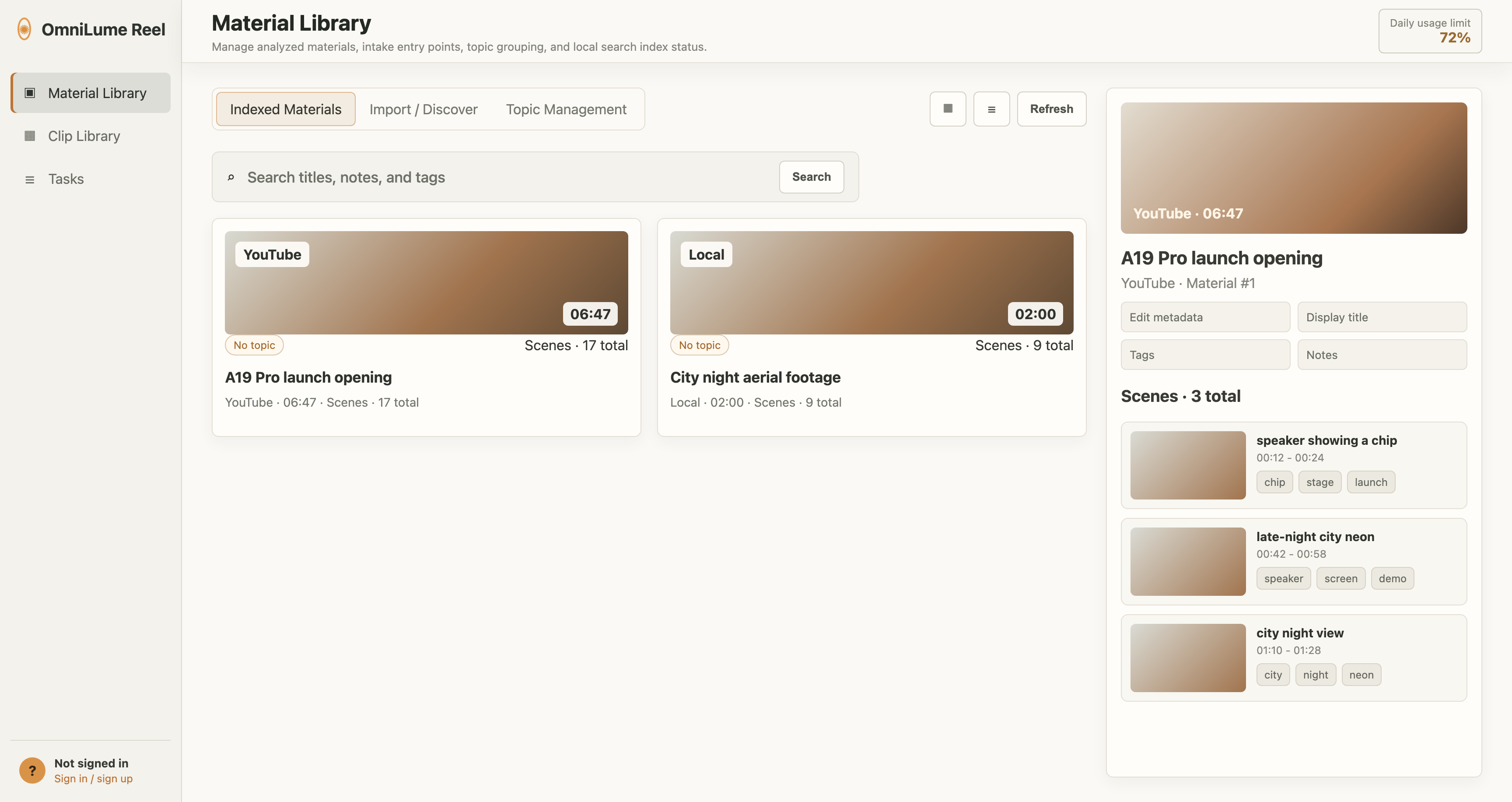
- Open Material Library > Indexed Materials.
- Find the target video in the material list. You can search by title, notes, or tags, and switch between grid and list views.
- Click the video card to open the detail drawer.
- Use the preview area at the top of the drawer to play the source video. If the system environment cannot play it inline, click Open in system player.
- In Edit metadata, organize the display title, tags, notes, and favorite state.
- Switch to Scenes to review scene summaries, tags, and thumbnails split by time segment.
- Click a scene to jump playback to that time.
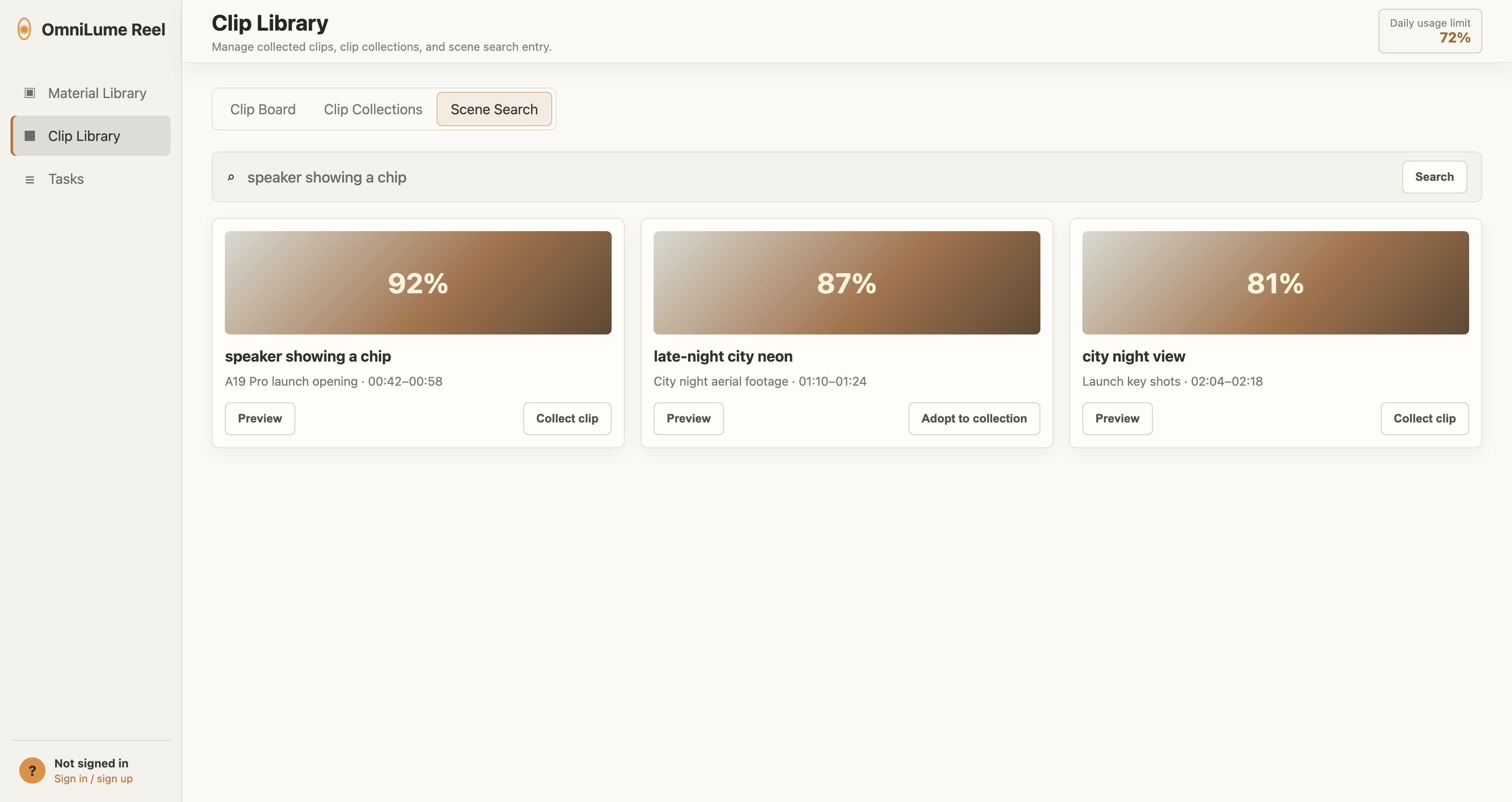
6. Search scenes and collect clips
- Open Clip Library > Scene Search.
- Enter a natural-language description, for example:
speaker showing a chip
or:
waves filmed along the coastline
- Click Search.
- Click Preview in the results to inspect a clip.
- Click Collect clip to add it to the Clip Board, or click Adopt to collection directly.
7. Export clips
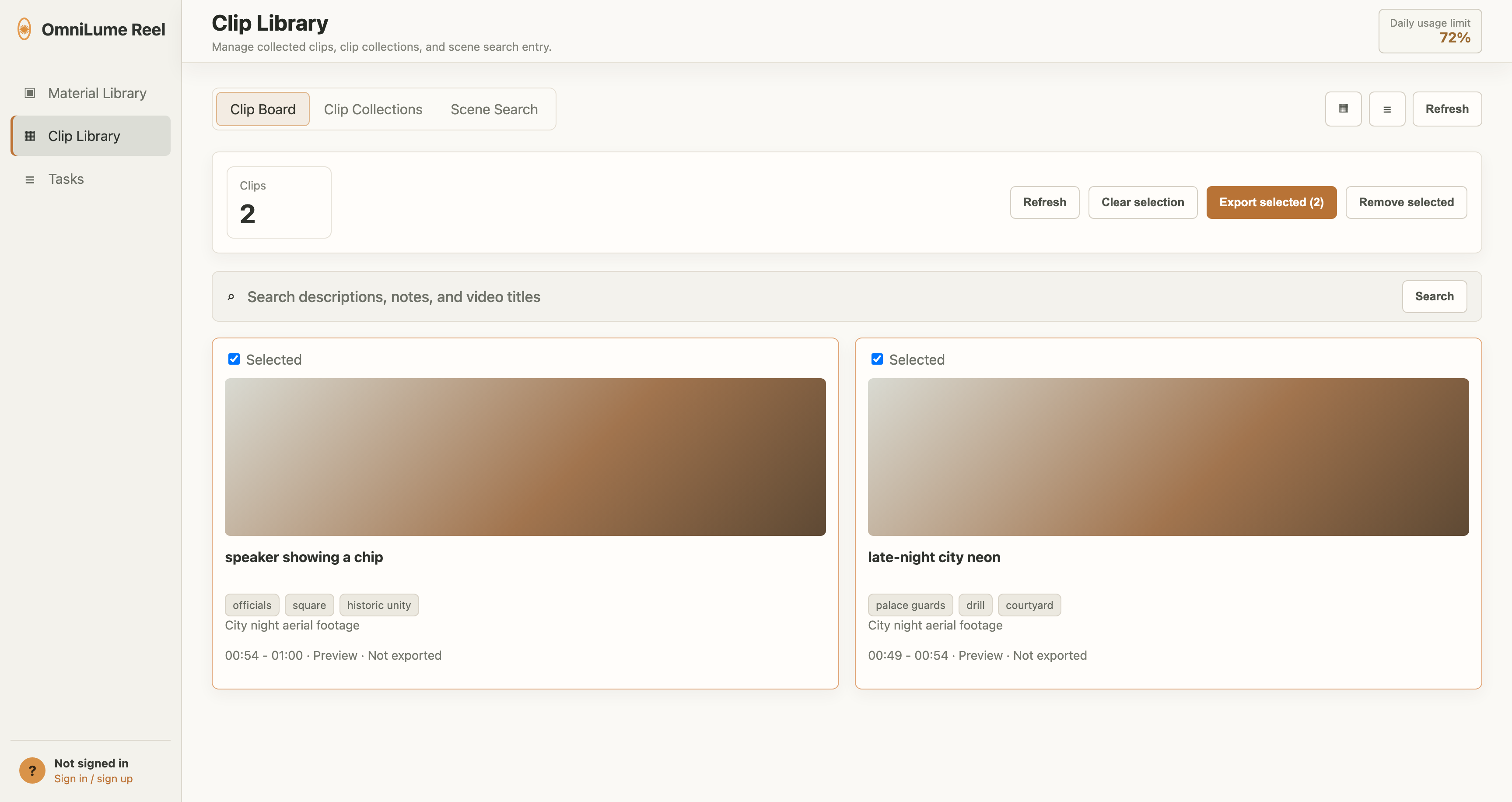
- Open Clip Library > Clip Board.
- Select the clips you want to export.
- Click Export selected.
- When export finishes, the app opens the export location under your library path.