Clip Library
The Clip Library page is where you select, group, and export scenes after analysis. It is not the material entry point. Local video import, platform search, and link import are still handled on the Material Library page.
The current Clip Library contains three tabs:
- Clip Board: Temporarily collect clips to export.
- Clip Collections: Save clips into a long-lived project or topic collection.
- Scene Search: Search analyzed scenes with natural-language descriptions.
Clip Board
The Clip Board is for temporary scene selection. When no clips have been collected yet, the page shows an empty state. Import and analyze materials in Material Library, or find scenes in Scene Search, then collect the clips you need.
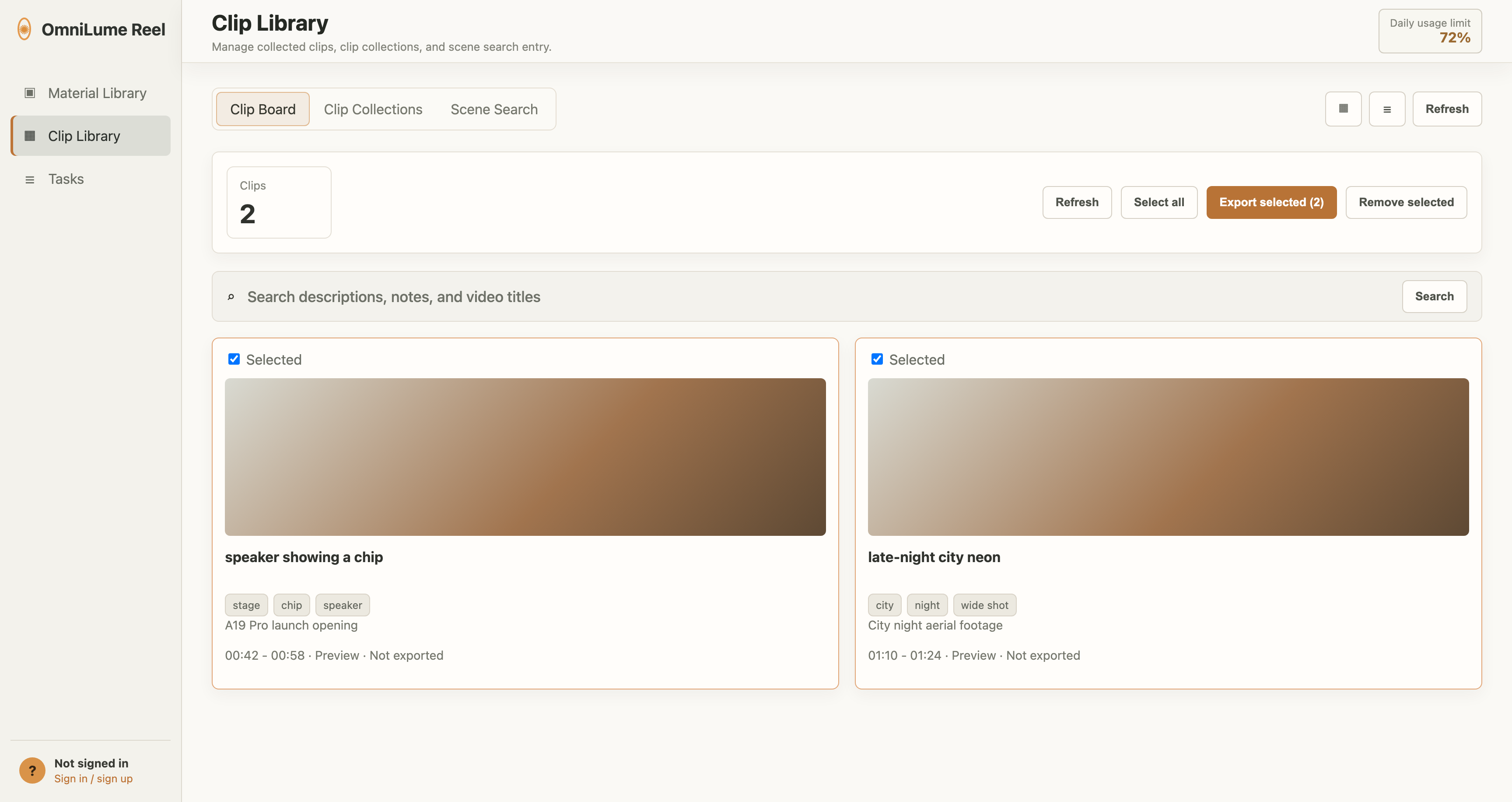
In Clip Library > Clip Board, you can:
- Search clip descriptions, notes, or video titles.
- Select one or more clips.
- Click Export selected.
- Click Remove selected.
- Switch between grid and list views.
- Preview a single clip.
During export, the app uses the source video file and ffmpeg to trim clips. If the source video file has been moved or deleted, export fails.
Clip Collections
Clip Collections manage clips by project. Compared with the Clip Board, collections are better for long-term storage and project-based export.
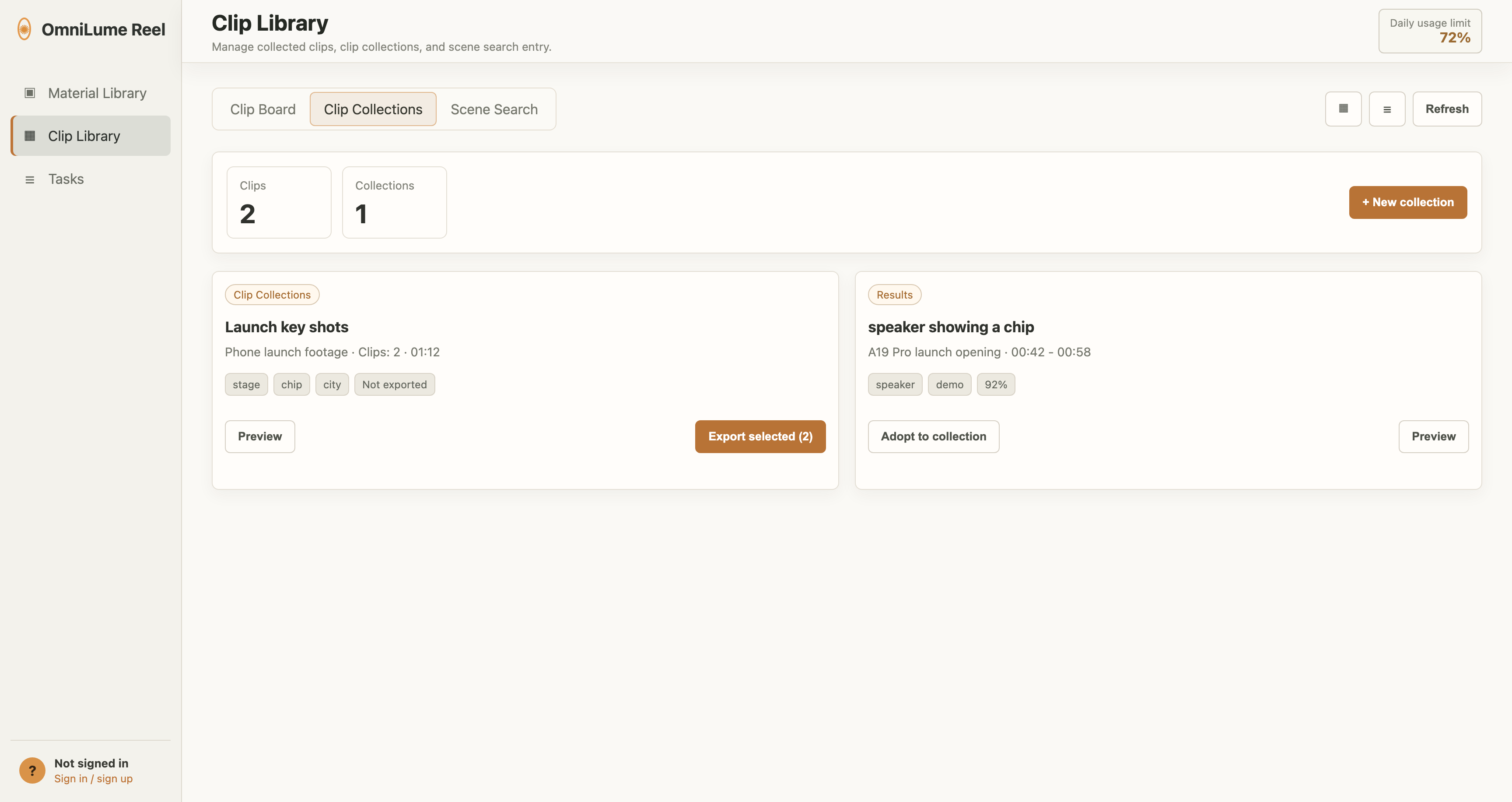
Create a collection
- Open Clip Library > Clip Collections.
- Click New collection.
- Enter a collection name, for example:
Launch key shots
- Optionally add a description.
- Click Create collection.
Adopt a scene into a collection
In Clip Library > Scene Search results:
- Click Adopt to collection.
- Choose the target collection.
- Return to the Clip Collections tab to review it.
Export a collection
On the Clip Collections tab, select a collection and click Export collection. The app trims the clips in that collection and writes them to the library path.
Scene Search
Scene Search matches natural-language visual descriptions to analyzed scenes. The page title is Scene Search · Semantic Match. It supports narrowing by topic and records historical search terms.
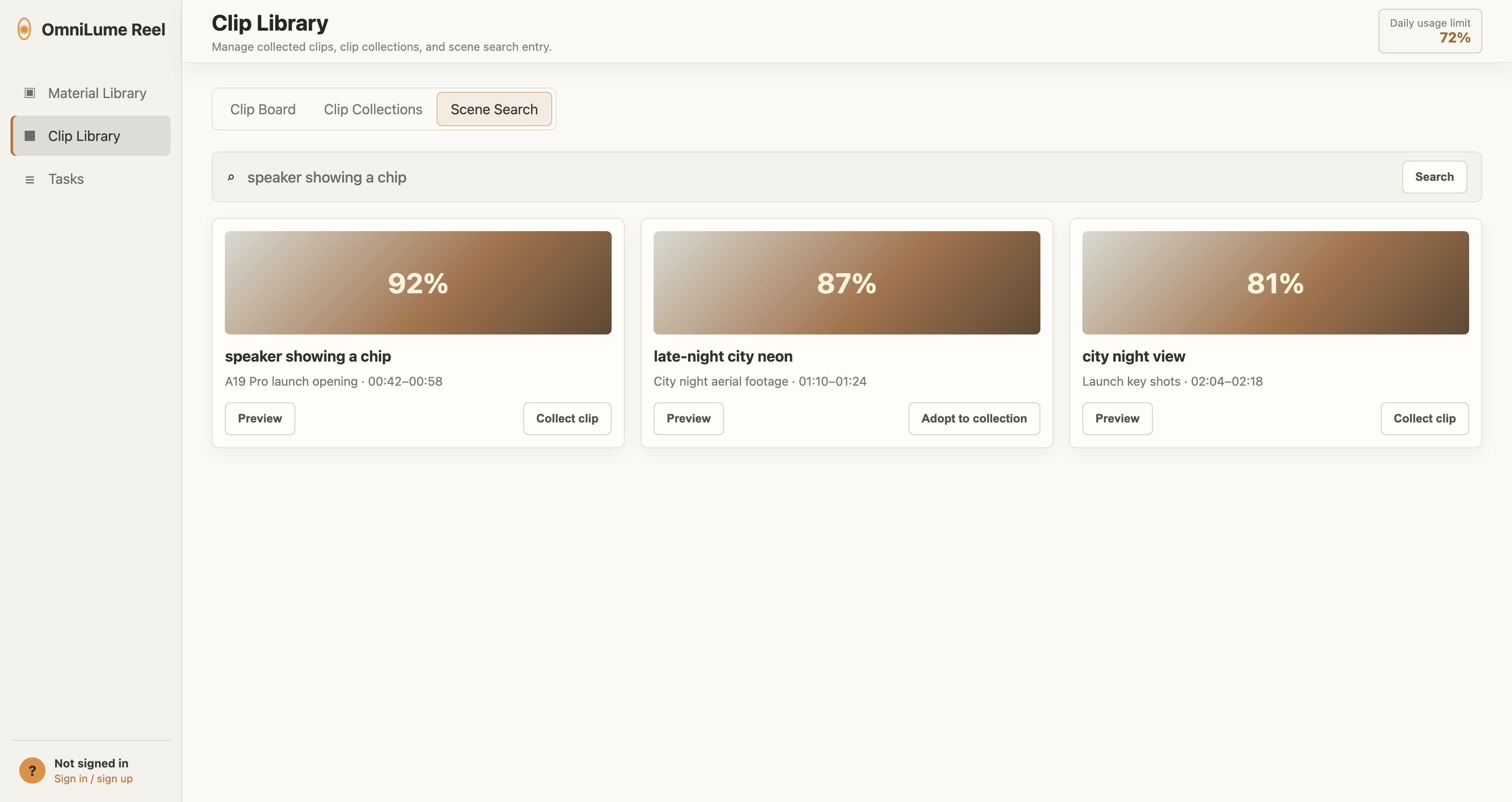
Steps:
- Open Clip Library > Scene Search.
- Enter a visual description in the search box.
- Optional: choose a topic from the dropdown, or keep All topics.
- Click Search.
- Preview results, collect them to the Clip Board, or adopt them into a Clip Collection.
English search examples:
late-night city neon
speaker showing a chip
waves filmed along the coastline
bar chart benchmark score
Results usually show:
- Scene thumbnail.
- Scene description.
- Visual keywords.
- Source video title and platform.
- Start and end time.
- Match score.
Scene Search depends on analysis results and vector indexes. Newly imported videos must finish their tasks before they appear in search results.
Preview a clip
Click Preview in a result to open the clip preview dialog. The video jumps to the scene start and pauses at the scene end.
If preview fails, open the video detail first and confirm that the source video can play in the right-side preview area or through Open in system player.
Collect clips
Click Collect clip to add a scene to the Clip Board.
This is useful for temporary selection:
- Candidate shots you want to export today.
- Clips that have not yet been assigned to a project collection.
- Clips you want to quickly export for teammate review.
Material detail drawer
Click a video card in Material Library > Indexed Materials to open the detail drawer.
The detail drawer includes:
- Playback area at the top.
- Video title, platform, channel, duration, collection time, video ID, and local path.
- Metadata editing: display title, tags, notes, and favorite state.
- Scene list.
- Dangerous delete area.
Play the source video
0.3.0 prioritizes the desktop native player for source-video preview so it can handle more real-world codecs. After you click play, the player opens the source video in the right-side preview area or a separate window.
If the current system environment cannot start the embedded player, click Open in system player to view the source video with the system default player.
Edit title, tags, and notes
You can modify:
- Display title.
- Tags.
- Personal notes.
- Favorite state.
Click Save after editing. These user-editable fields are not overwritten casually when the same video is imported again.
Delete a video
Click Delete video and confirm again. Deletion removes:
- Material record.
- Scene records.
- Vector index entries.
- Thumbnails, downloaded files, and task artifacts owned by the current code.
The original source video file is not deleted.