Material Library
The Material Library page is where materials enter the app and become indexed. It contains three tabs: Indexed Materials, Import / Discover, and Topic Management.
Indexed Materials
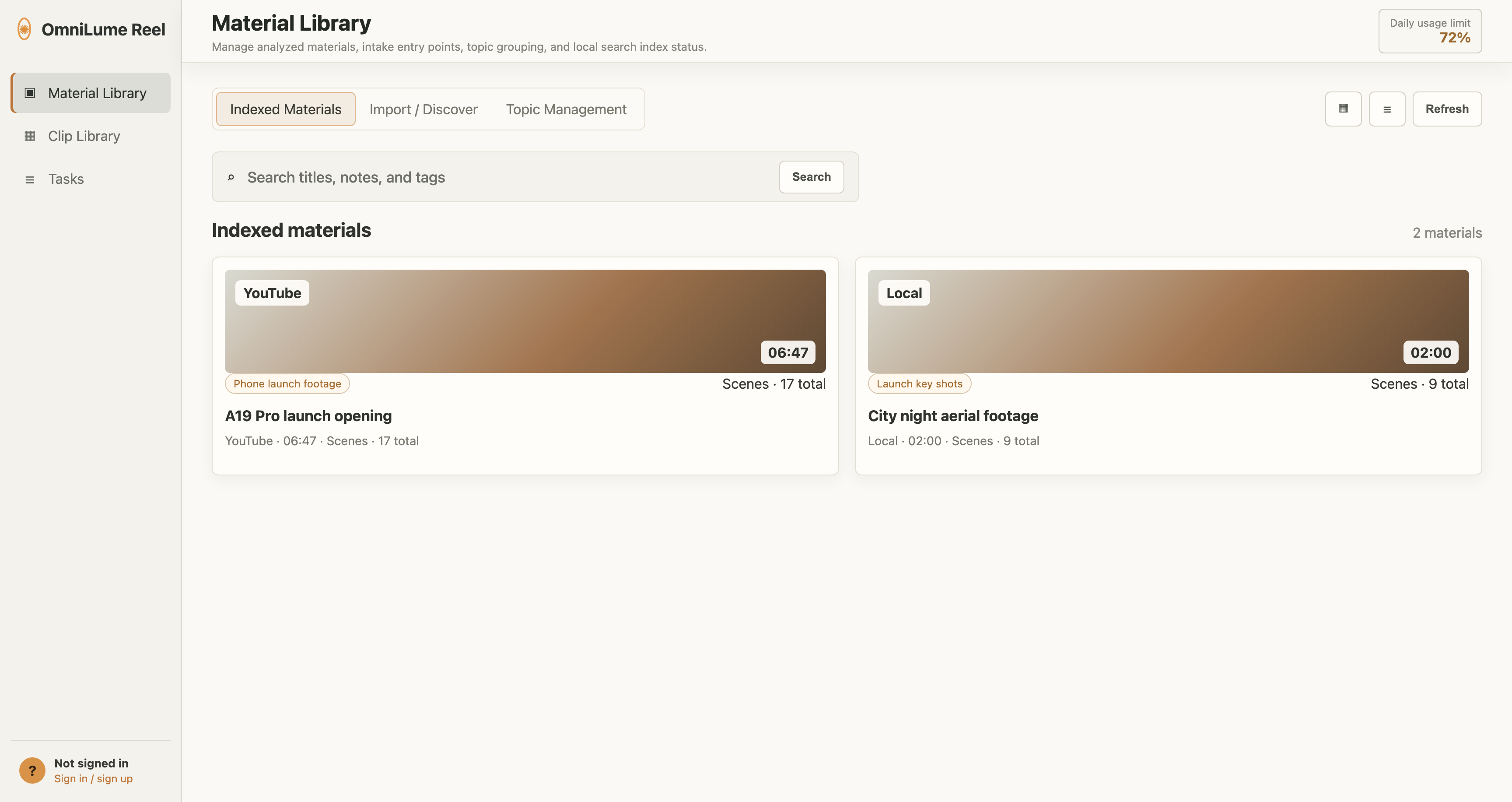
"Indexed Materials" shows videos that have finished analysis and have been written to the local search index. Each card includes:
- Thumbnail and duration.
- Platform marker, such as Local, YouTube, Bilibili, Kuaishou, or CCTV.
- Title, channel, and collection time.
- Number of recognized scenes.
- Associated topics.
Click a card to open the material detail drawer. In the drawer, you can play the video, review scenes, edit title/tags/notes, or delete the material record.
Add videos to a topic
If you have created topics, click Add to topic below a material card. One material can belong to multiple topics.
Examples:
- "Phone launch footage"
- "City promo film"
- "Course interview footage"
Import / Discover
"Import / Discover" contains three entry points.
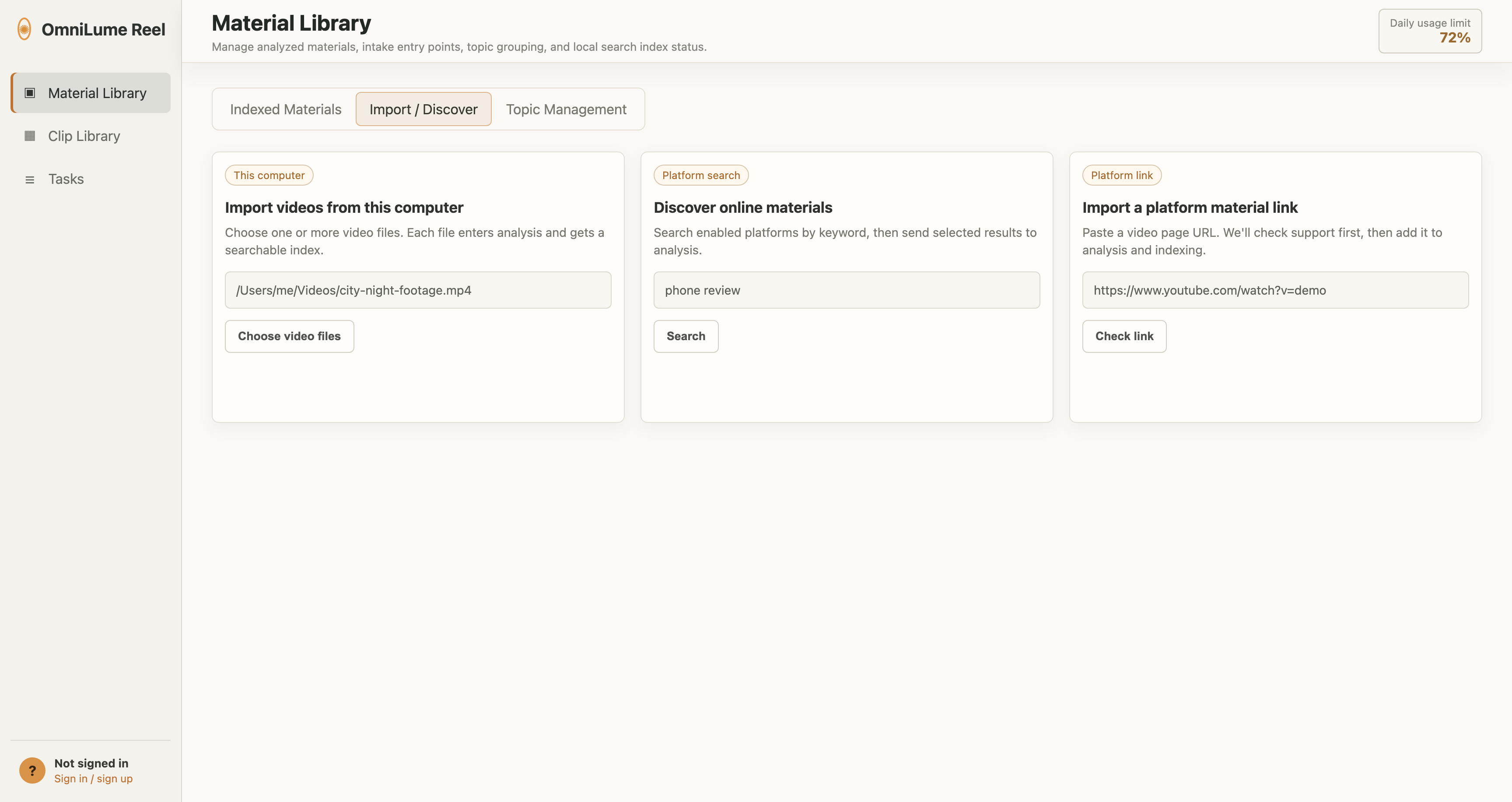
Import videos from this computer
Use this for videos already saved on your computer or an external drive.
Steps:
- Click Choose video files.
- Select one or more video files.
- The app creates analysis and indexing tasks for each video.
- Open Tasks to watch progress.
Local video import does not move the original file into the data directory. Do not delete or move the source file before analysis and export finish.
Discover online materials
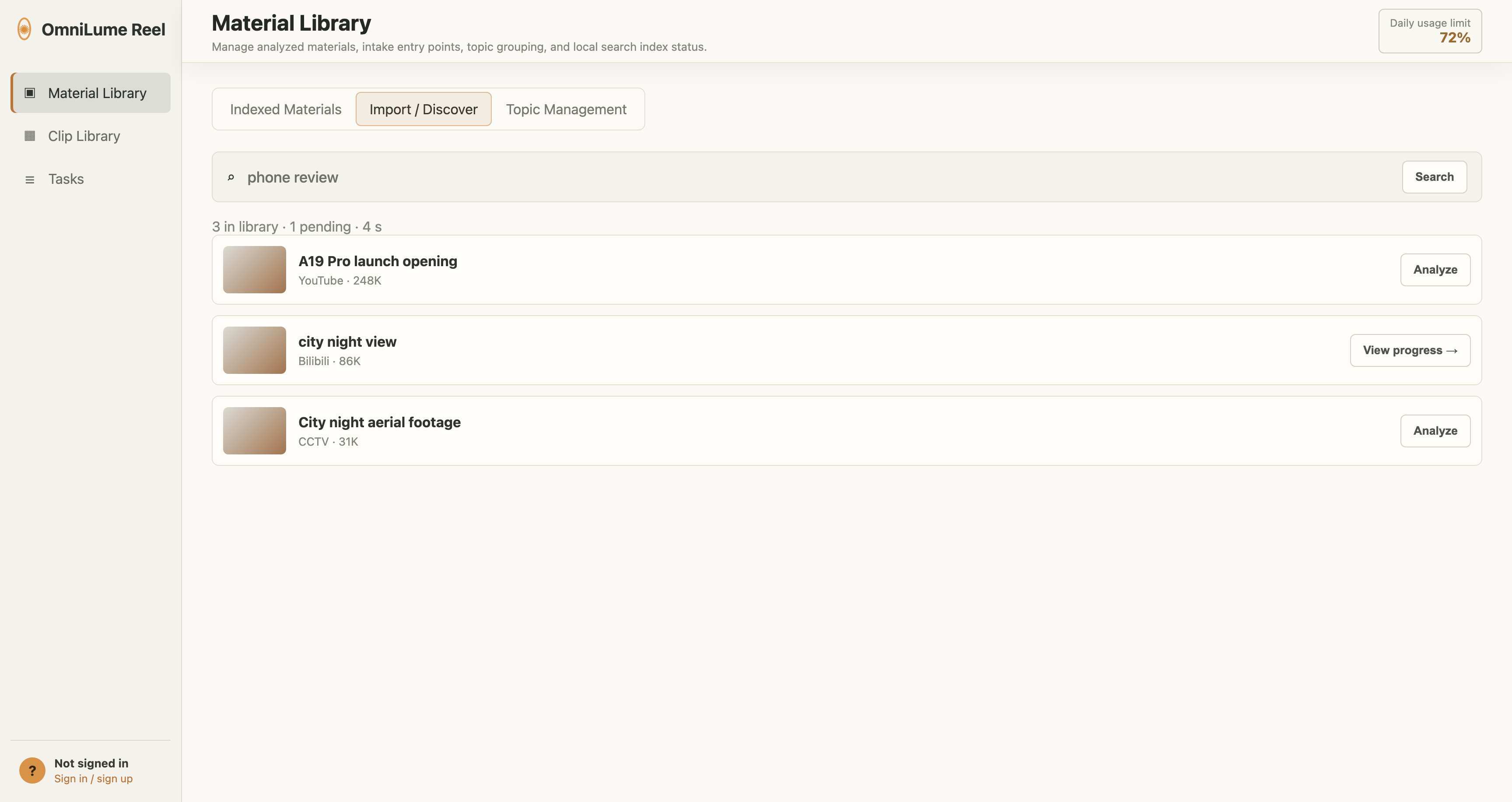
Use this to discover materials first, then choose which videos are worth analyzing.
Steps:
- Enter a keyword in the search box.
- Click Search or press Enter.
- Browse cross-platform results.
- Click Start analysis on a result card.
Recommended English search terms:
city night view
phone review
cooking tutorial
Romance of the Three Kingdoms clip
Search settings include two temporary parameters:
- Per platform: Controls the maximum number of results returned by each platform.
- Timeout (seconds): Skips a platform if it still has no result after this many seconds.
Enable or disable platforms in Settings > Platform Sources.
Import a platform material link
Use this when you already know the exact video link.
Steps:
- Paste the URL.
- Click Probe link.
- If the link can be parsed, click Add to analysis.
Common reasons a probe can fail:
- The link is not a public video page.
- The video requires login, membership, or a specific region.
- The platform is temporarily challenging, rate limiting, or timing out.
- The video page has been deleted or taken down.
Topic Management
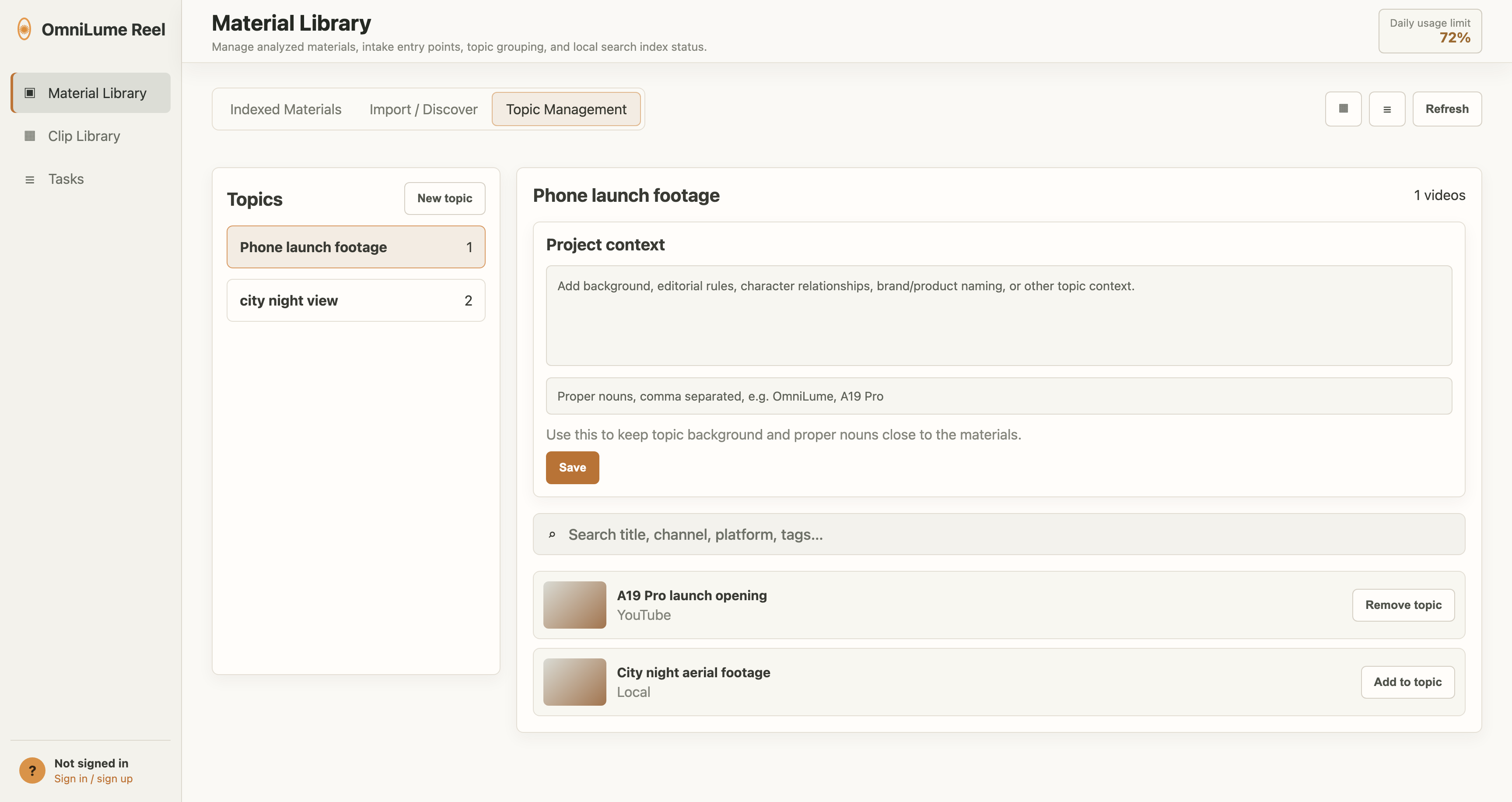
Topics manage indexed materials. They are not clip collections. A topic answers the question "which videos belong to the same material research subject?"
Typical topics:
- "A19 Pro launch material"
- "Summer city promo film"
- "Podcast interview footage"
- "Historical documentary shots"
Create a topic
- Open Material Library > Topic Management.
- Click New topic.
- Enter a name and confirm.
Add materials to a topic
There are two ways:
- Click Add to topic on an Indexed Materials material card.
- Select a topic on the Topic Management tab, then add videos from the available material list.
Record project context
Topic management in 0.3.1 supports project context and proper nouns, such as brand names, character relationships, editorial rules, or product naming conventions. This helps you organize materials. It does not replace scene search itself.
Search scenes by topic
After opening Clip Library > Scene Search, you can choose a topic below the search box. The app searches only videos in that topic, which is useful for narrowing results in a large material library.