Tasks
The Tasks page shows background flows such as import, download, analysis, and indexing. You do not need to stay on this page while waiting. The app automatically polls running tasks.
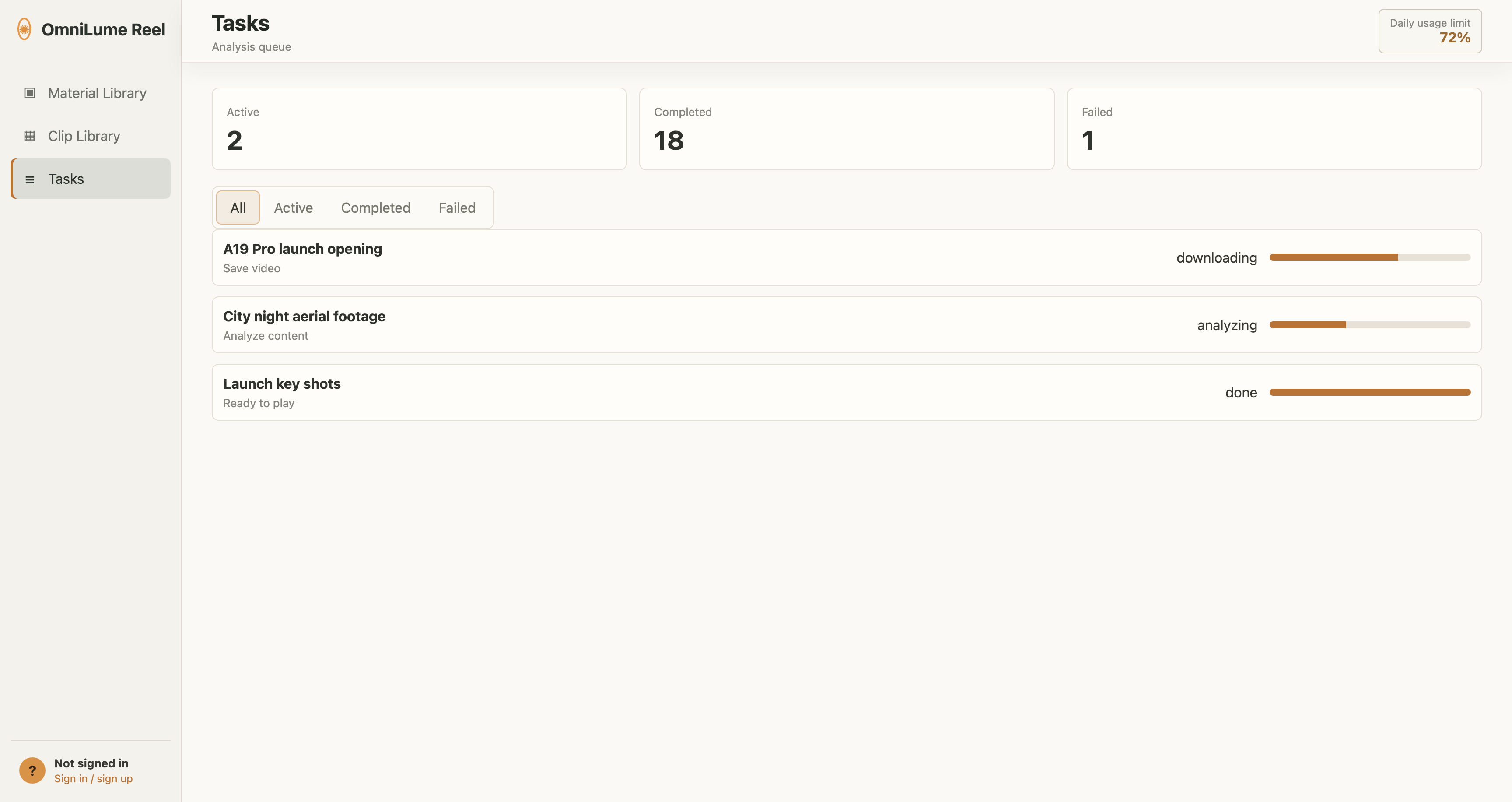
Filter tasks
The top bar has four filter tabs:
- All: Shows recent tasks.
- Active: Shows queued, searching, downloading, analyzing, and other unfinished tasks.
- Completed: Shows successfully completed tasks.
- Failed: Shows failed tasks.
Buttons on the right:
- Refresh: Manually reload the task list.
- Clear completed: Delete completed task records. This does not delete material records.
Task states
Common states:
| State | Meaning |
|---|---|
| Queued | The task has been created and is waiting to be scheduled. |
| Searching | The app is searching or parsing platform information. |
| Ranking | The app is organizing platform search results. |
| Downloading | The app is saving a platform video or reading download progress. |
| Analyzing | The app is extracting frames, recognizing audio, calling AI analysis, and writing indexes. Native multimodal mode also prepares and uploads video segments. |
| Completed | The material has been added to the library and can be viewed in Material Library. |
| Failed | A stage failed. You can inspect logs and retry. |
Expand task logs
Click a task row to expand details. Logs show a processing timeline, for example:
- Checking file
- Reading video
- Saving video
- Preparing native analysis
- Uploading video segments
- Skipping or recognizing audio
- Analyzing content
- Organizing content
- Generating summary
Platform video tasks also show download, save, analysis segment, finish time, and elapsed time information.
Retry failed tasks
If a failed task kept its original input, you can click Retry. Retry uses the source information from the original task, runs it again, and consumes analysis quota again.
Retry is useful when:
- A platform temporarily timed out.
- The network was interrupted.
- Download was interrupted.
- The AI analysis service failed temporarily.
Retry is not useful when:
- The source file was deleted or moved.
- The platform video has been taken down.
- The link requires login but browser cookies have expired.
- Today's analysis quota has been used up.
Terminate or delete tasks
Running tasks show a Terminate button. Clicking it requires a second confirmation. The app attempts to clean incomplete downloads, temporary files, and partially written materials.
Finished tasks show a Delete button. Deleting a task record does not delete materials that have already been added to the library.
Clear completed
Click Clear completed to delete all completed task records. This does not delete:
- Indexed materials.
- Scene analysis results.
- Clip Board clips.
- Clip Collections.
- Exported files under the library path.