Account, Quota, and Updates
Sign in / sign up
OmniLume Reel signs in with email verification codes. Sign-in is not required to use the app. You can continue working while signed out.
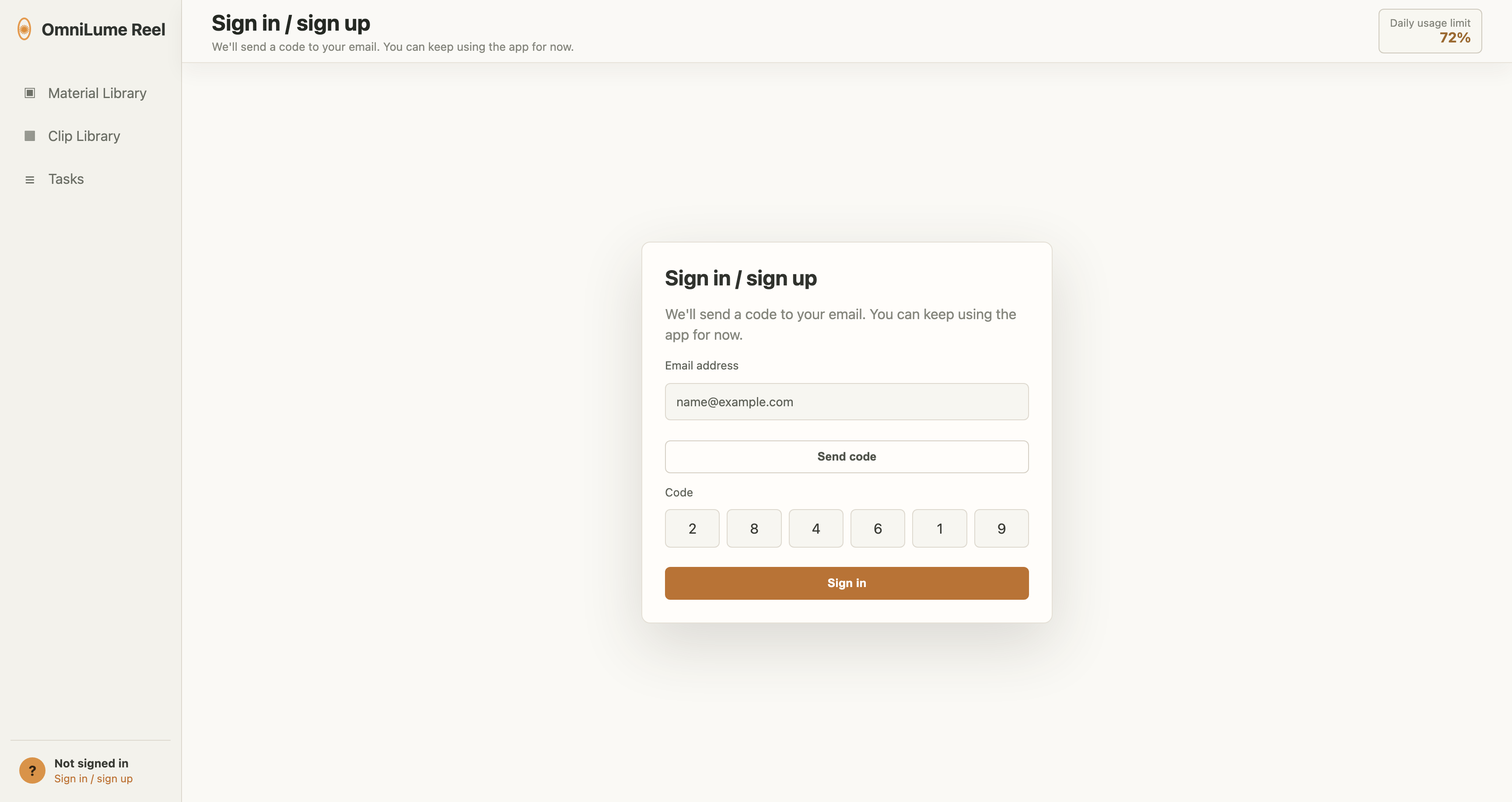
Steps:
- Click Sign in / sign up in the user card at the lower left.
- Enter your email address.
- Click Get code.
- Enter the 6-digit verification code.
- Click Complete sign-in.
Common sign-in failure messages:
- Too many requests.
- Verification code is incorrect.
- Verification code has expired.
- Email format is invalid.
- Verification code could not be sent.
Sign out
Click Sign out in the user card, then click Confirm sign-out. You can still use the local material library after signing out.
Analysis quota
The top bar shows today's usage limit and remaining quota. Quota is consumed only after analysis succeeds.
Signed-out and signed-in users may have different quotas. If signed-out quota is exhausted, signing in may provide a higher quota. If signed-in quota is exhausted, wait for the next daily reset.
Common quota messages:
- Today's signed-out analysis quota is used up: Sign in to continue with a higher quota.
- Today's analysis quota is used up: Try again tomorrow.
- An analysis task is already running: Wait for the current task to finish.
- Native multimodal analysis requires an active Pro subscription: Switch to OmniLume Classic, or sign in and activate Pro.
- Current software version is too old: Update to the required version before starting analysis.
Membership plans
The account menu shows your current plan. The free plan includes local material workflows and a basic daily analysis quota. The Pro plan provides a higher daily analysis quota and unlocks Settings > Analysis > OmniLume Vision native multimodal analysis.
In the account menu, you can:
- View your current plan.
- Activate Pro.
- Manage subscription.
- Refresh membership status.
Optional usage statistics and diagnostics
You can enable or disable this during quick setup or in Settings > General.
When enabled, the app may send:
- Anonymous installation ID.
- App version.
- System platform, version, and architecture.
- Interface language.
- Time zone.
- Startup, activity, and page-path events.
- Sanitized summaries of crashes or uncaught errors.
It does not send material content, search terms, paths, video links, cookies, account password, or account secrets.
Software updates
The desktop client checks remote update manifests for software updates. In Settings > Advanced, you can:
- View the current version.
- View the last check time.
- Click Check for updates.
- Click Download and install.
- Enable or disable automatic update checks.
- Enable or disable automatic update downloads.
If automatic download is enabled, the app downloads a new version in the background and asks whether to restart and install after the download finishes.