Settings
The Settings page uses section navigation on the left and scrollable content on the right. Changes are saved automatically. Hot-reload settings take effect immediately, while restart-required settings are marked in the interface. If saving fails, an error appears in the upper right.
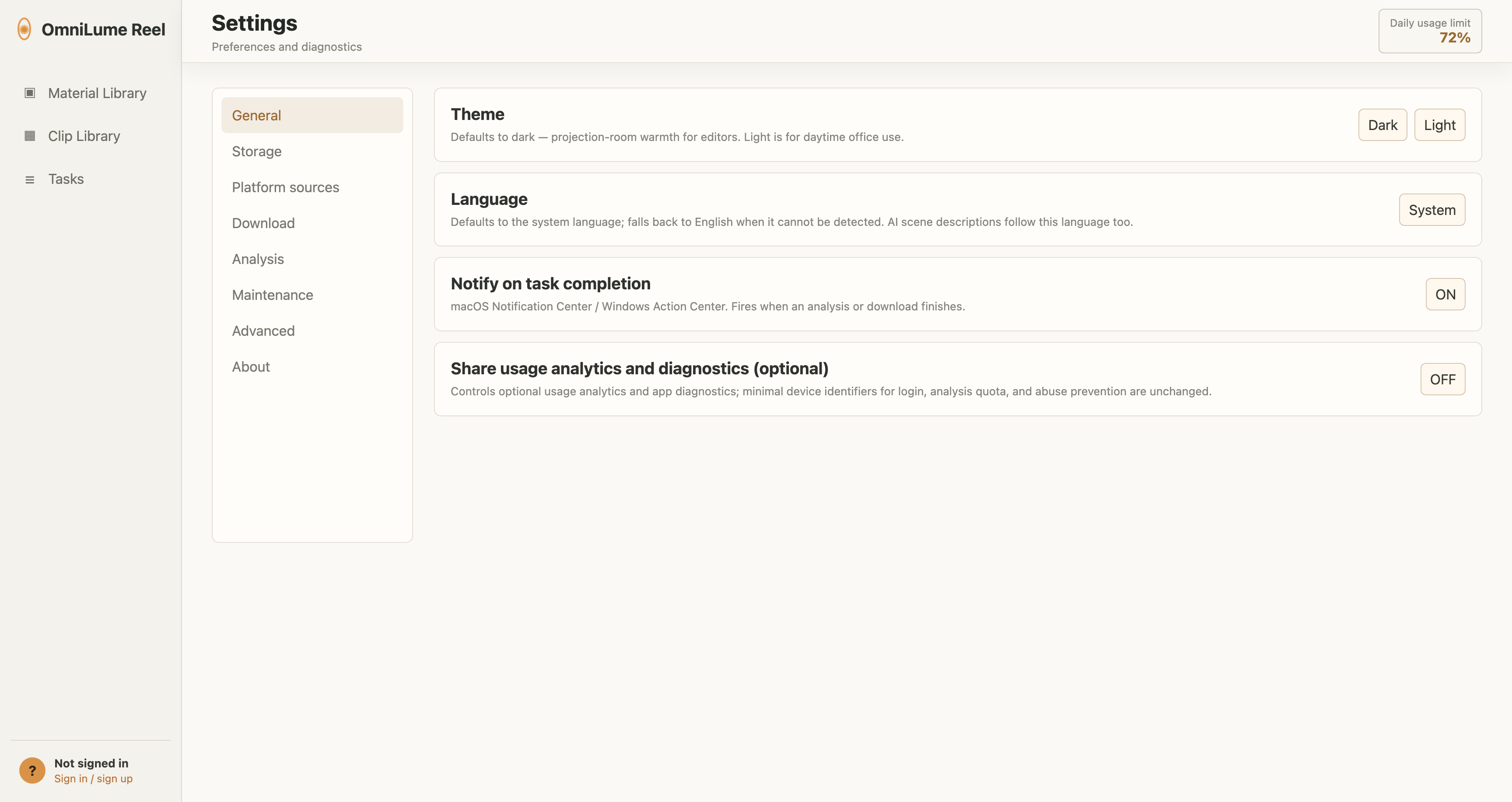
General
Theme
Options:
- Light
- Dark
- Follow system
Language
Choose "Follow system" or a specific language. The 0.3.2 desktop app supports 19 language options. The language affects interface copy and also the output language requested by new analysis tasks.
System notifications for completed tasks
When enabled, the app sends a system notification after analysis or download completes.
Share usage statistics and diagnostics
This is optional. Enabling it helps understand version distribution, usage trends, and crash issues.
The app does not send:
- Video titles
- Video links
- Search terms
- File paths
- Material content
- Scene descriptions
- Transcripts
- Browser cookies
- Email or password
Storage
Data directory
Stores the database, logs, cache, and thumbnails. Changing it requires a restart. Existing data is not migrated automatically.
Library path
Stores downloaded video materials, exported clips, and material files. By default it uses OmniLumeReel under the system Movies/Videos folder. Use a large disk or external SSD if needed.
Clean cache
Deletes temporary files, thumbnails, and other intermediate data. It does not affect the material library or analysis results.
Platform Sources
This controls which sources platform search uses.
You can:
- Select all platforms.
- Deselect all platforms.
- Enable or disable each platform individually.
- Set per-platform search timeout.
After a platform is disabled, "Discover online materials" in Material Library > Import / Discover skips it. URL import still probes whether a specific link can be parsed.
Download
When multiple quality options are available
Options:
- Automatically choose best quality
- Limit to 4K
- Limit to 1080p
- Limit to 720p
- Limit to 480p
- Limit to 360p
- Limit to 240p
- Limit to 144p
If you choose 480p but a site only provides higher qualities, the app chooses the lowest available quality among them.
Analysis
Analysis model
Options:
- OmniLume Classic: Stable segmented visual-analysis pipeline with a separate speech-recognition flow.
- OmniLume Vision: Pro-only native multimodal model that can analyze video frames and audio together. It is locked when you are not signed in or do not have Pro.
OmniLume Vision estimates quota multiplier according to server policy. If your account does not have Pro entitlement, use OmniLume Classic.
Frame sample interval
How many seconds between sampled frames for analysis. Lower values produce finer recognition but take longer and require more calls.
Recommendations:
- Fine editing: 1 to 2 seconds.
- General material organization: 2 to 5 seconds.
- Fast preview: 5 to 10 seconds.
Analysis window size
The video duration processed by each AI analysis call. The recommended default is 60 seconds.
Window overlap context
Extra context carried before and after each analysis window to handle scenes that cross window boundaries. The default is 15 seconds.
AI reasoning effort
Options:
- Low: Faster, rougher descriptions.
- Medium: Balanced speed and quality.
- High: Best quality, slower.
AI output token limit
Controls the maximum length of content returned by each visual-analysis call. The default and maximum are both 8192.
Minimum speech duration
Video segments shorter than this duration skip speech recognition and run visual analysis only.
AI analysis window concurrency
The number of windows from a single video sent to AI analysis at the same time. Increasing it can speed up long videos, but also raises concurrency pressure and retry risk.
Concurrent tasks
The number of videos processed at the same time. Lower it to 1 when computer performance or network conditions are constrained. Raise it to 3 or 4 on stronger machines.
Maintenance
Repair local search
Regenerates the local indexes used for semantic search and scene search. It does not delete the material library.
Use it when:
- Expected scenes cannot be found after import finishes.
- Scene search results are obviously abnormal.
- Local index data is damaged or needs rebuilding after migration.
Advanced
The advanced section contains software update controls:
- Current version.
- Last check time.
- Check for updates manually.
- Download and install.
- Automatically check for updates.
- Automatically download updates.
When a new version is found, the app asks whether to install later or download and install. It does not restart silently.
About
The About section shows:
- Product name.
- Current version.
- Runtime platform.
- Service start time.
- Software statement.